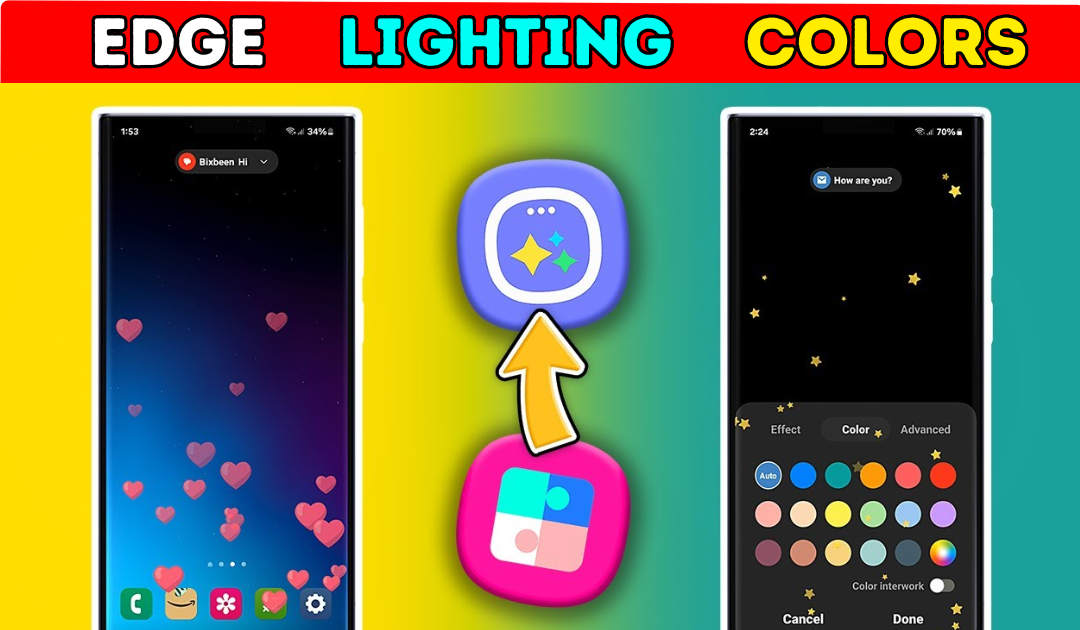
The message notification icon on Android is a small yet essential feature that keeps users informed about new messages and updates. Whether it’s a text message, a WhatsApp notification, or an email alert, the notification icon ensures that you never miss important information. However, many users face issues such as missing notification icons, delayed alerts, or incorrect badge counts. In this article, we will explore everything about the message notification icon on Android, how it works, how to troubleshoot issues, and how to customize it for a better user experience.
What is the Message Notification Icon?
The message notification icon is a small symbol that appears on the status bar or app icon when you receive a new message. This icon typically shows an envelope, speech bubble, or badge count, indicating the number of unread messages. It serves as a visual reminder that there is a pending message waiting for your attention.
How the Message Notification Icon Works
Android uses the notification system to alert users about new messages. Whenever a message arrives, the system generates a notification, which is displayed in the status bar and notification panel. Some apps also use badge counts, which appear as a small number on the app icon to indicate unread messages.
Common Issues with Message Notification Icons
Many users experience problems with message notification icons on Android. Some common issues include: The notification icon does not appear when a new message arrives. The badge count is incorrect or does not update properly. Notifications are delayed or do not show up at all. Notifications disappear after a short time.
Several factors can cause notification icons to disappear or not work correctly. Some possible reasons include: Notification settings are turned off for the messaging app. Battery optimization settings restrict background processes. The app’s cache and data are corrupted. The device is in Do Not Disturb mode. Software bugs or system glitches.
How to Fix Message Notification Icon Not Showing
If your message notification icon is not appearing, follow these troubleshooting steps: Go to Settings > Apps & notifications > [Messaging App] > Notifications and ensure that notifications are enabled. Also, check if the “Show notification dot” or “Badge count” option is turned on. Some Android devices automatically restrict app activity to save battery. To disable this, go to Settings > Battery > Battery Optimization, find your messaging app, and select “Don’t optimize.”
Clear Cache and Data
Sometimes, clearing the app’s cache and data can fix notification issues. Go to Settings > Apps > [Messaging App] > Storage > Clear Cache and then restart your device. If your phone is in Do Not Disturb mode, notifications may not appear. Disable it by going to Settings > Sound & vibration > Do Not Disturb and turning it off. A simple restart can refresh the system and fix temporary glitches that prevent notifications from appearing.
Update the App and Software
Ensure that both your messaging app and Android OS are up to date. Go to the Google Play Store, check for updates, and install the latest version. Android allows users to customize how notifications appear. You can change the icon style, enable or disable badge counts, and modify the sound and vibration settings. Some devices let you change notification icon styles through the settings. Go to Settings > Display > Status Bar > Icon Style and select your preferred design.
Enable or Disable Badge Counts
To enable or disable notification badges, go to Settings > Apps & notifications > [Messaging App] > Notifications and toggle the “Badge Count” option. If you want more customization options, you can use third-party apps like Nova Launcher, Niagara Launcher, or Notification History Log to tweak how notifications appear on your device.
Message Notification Icon Not Disappearing? Here’s How to Fix It
Sometimes, the message notification icon does not disappear even after reading the message. This can happen due to a system bug or an issue with the messaging app. To fix this, try the following steps: Restart your phone. Clear the messaging app’s cache and data. Check if there is a pending unread message. Update the app and your device software. If the issue persists, reinstall the app or try using a different messaging app.
The message notification icon on Android is a crucial feature that helps users stay updated with new messages. However, it can sometimes malfunction due to various reasons, including settings misconfigurations, battery optimizations, or software bugs. By following the troubleshooting steps mentioned above, you can fix common notification issues and ensure that your message alerts work smoothly. Additionally, customizing your notification settings can enhance your Android experience by making alerts more visible and convenient.